Quick summary
Taking patient photos on an Android phone can be safe, but your clinic needs the right app, phone settings and rules.
Use an approved clinical photo app with a signed business associate agreement (BAA), where required, instead of the phone’s built-in camera app. Set a strong screen lock, turn on theft protection, and stop patient photos from being backed up to a personal Google Photos account.
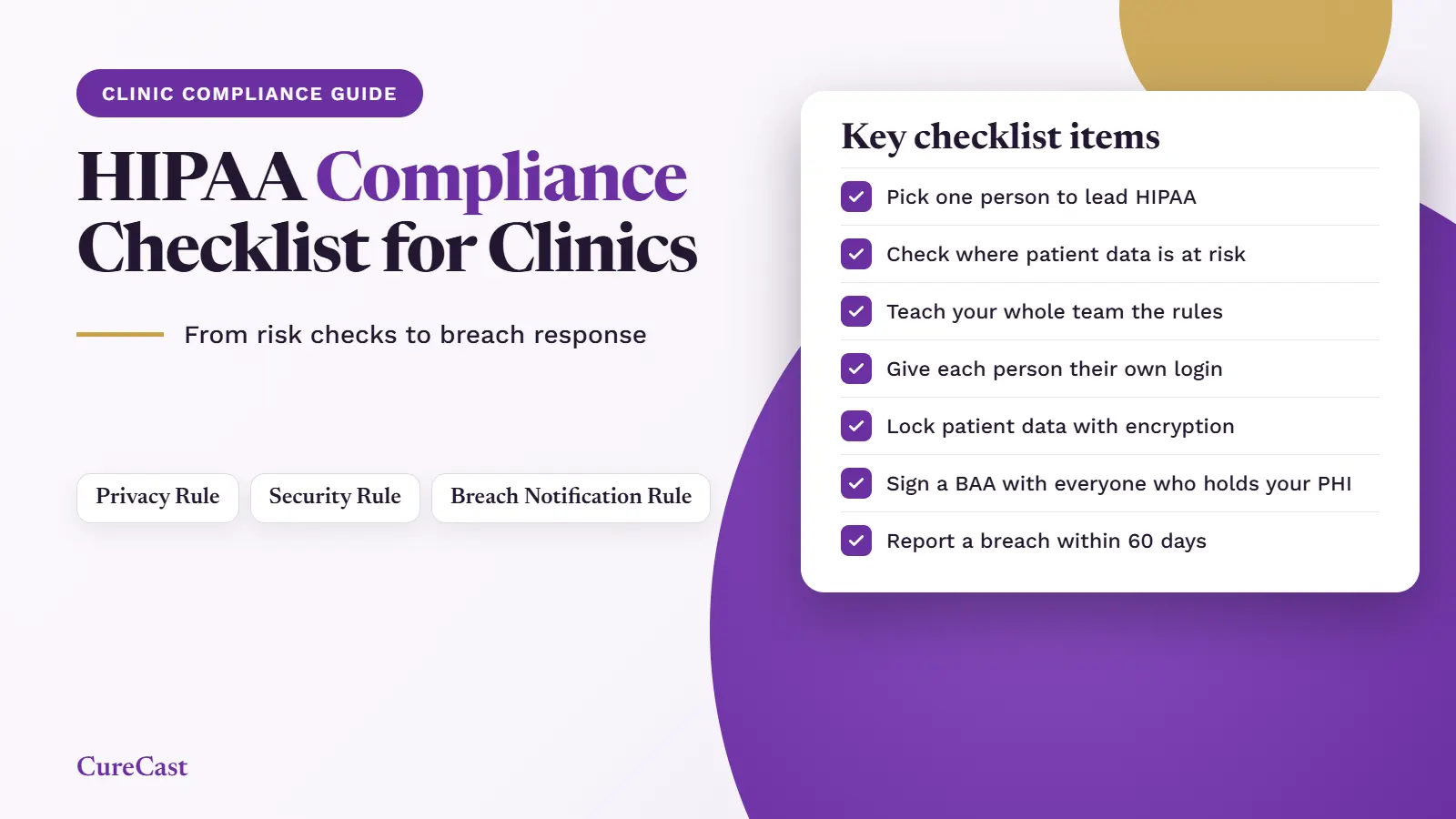
HIPAA does not require a particular phone brand. It requires clinics to protect patient information, control who can access it and keep records of certain activities.
This guide explains how to set up an Android phone for patient photography, avoid common mistakes and protect patient photos if a phone is lost.
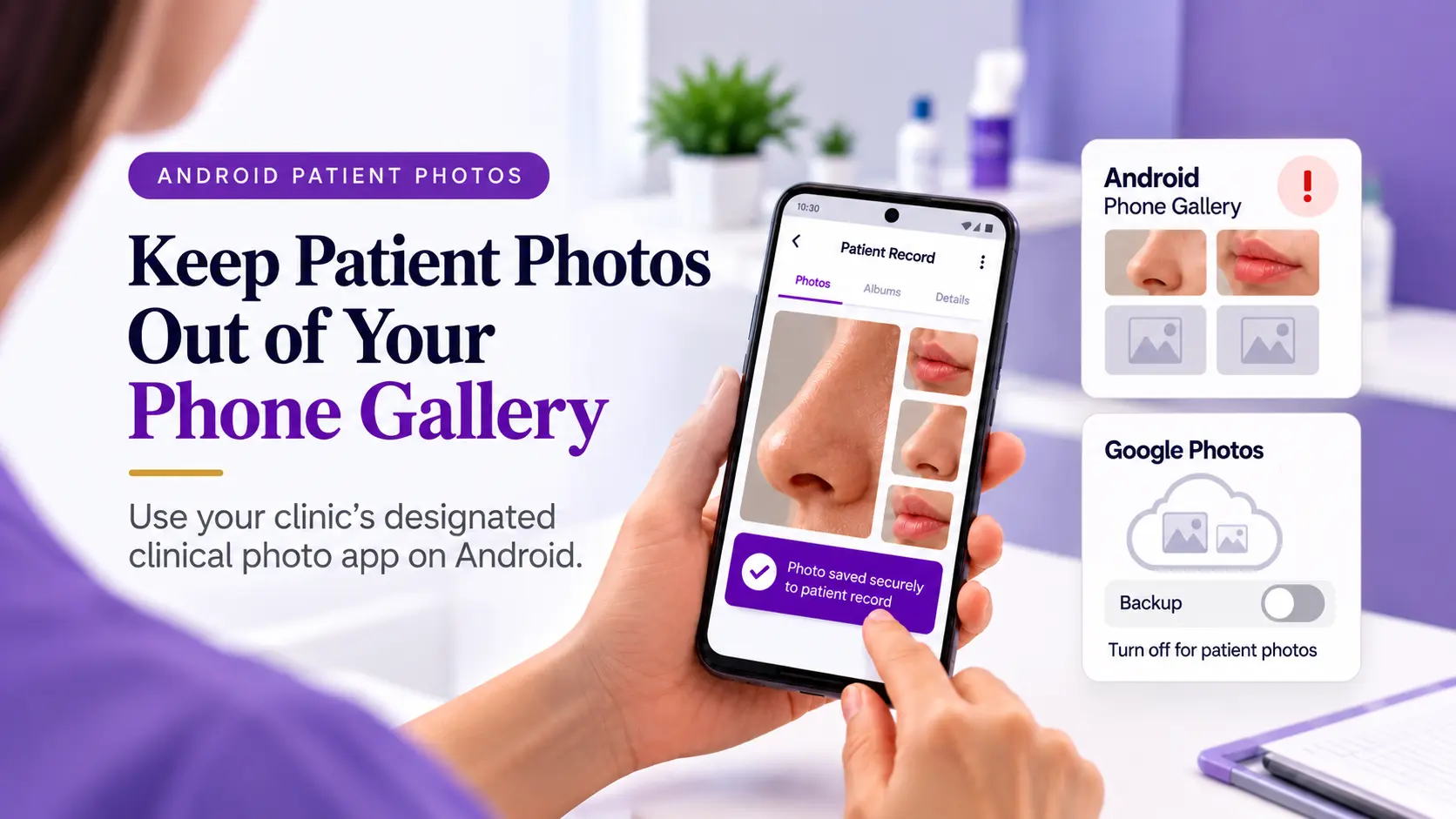
Key principle: Patient photos should never be saved in the default Android’s Gallery.
Why Should You Avoid the Built-In Android Camera App?
Most Android camera apps save photos to the phone’s gallery. If Google Photos backup is turned on, those photos may also be copied to the Google Account connected to the phone.
That account might belong to a staff member rather than the clinic.
The standard camera and gallery apps also do not usually provide the controls a clinic needs, such as:
- A separate login for each staff member.
- A record of who viewed, downloaded or shared a patient photo.
- A direct link between the photo and the correct patient record.
- A way for an administrator to end a staff member’s access to the clinical photo app.
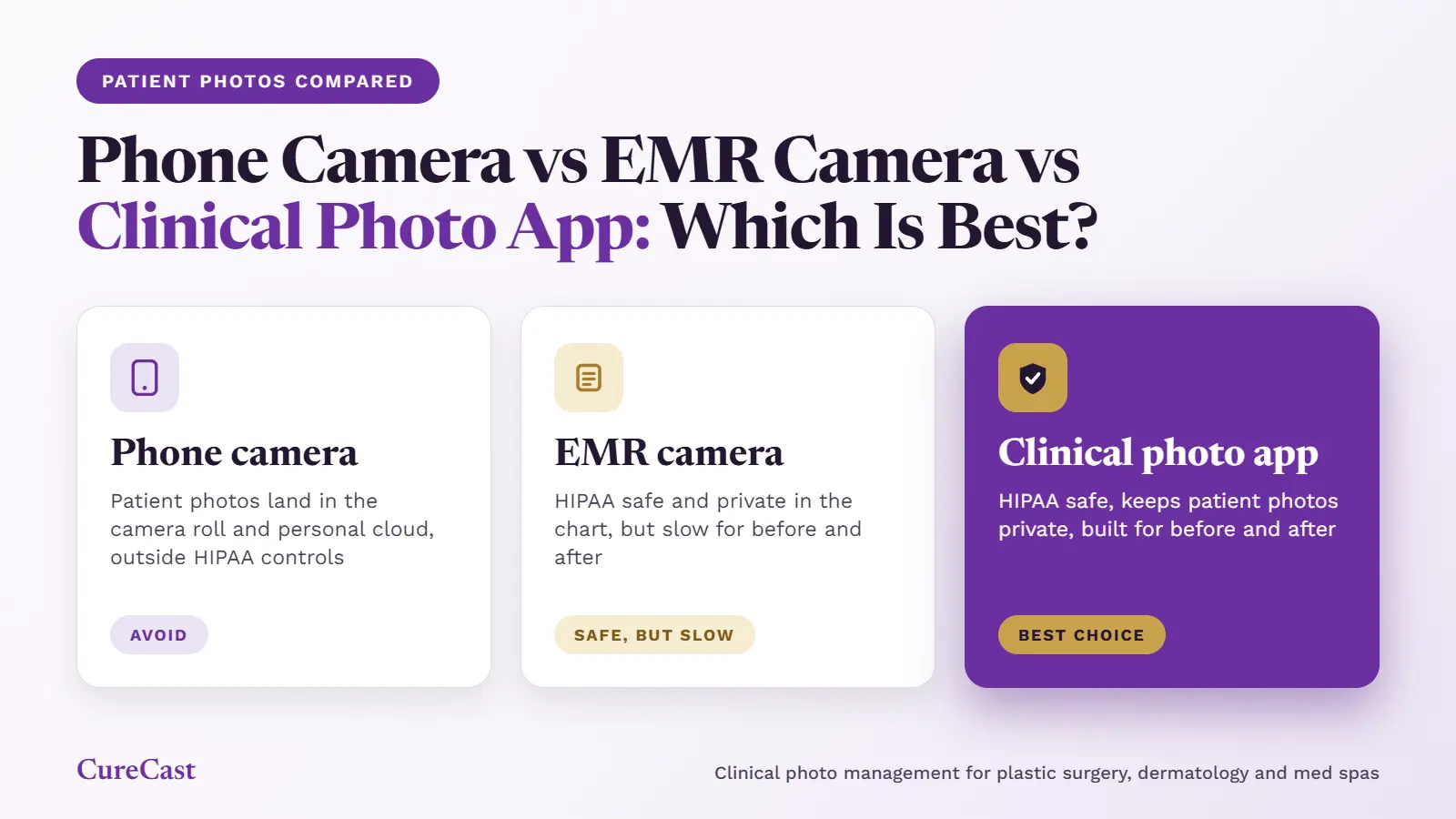
HIPAA does not automatically ban every use of a phone’s camera app. However, a clinic must make sure its complete photo workflow meets the rules that apply to it.
For more information, read our guide: Is a Phone Gallery HIPAA-Compliant for Patient Photos?
What Should You Check Before Choosing a Patient Photo App?
Choose the clinical photo app before changing your phone settings. A secure phone cannot replace the access controls and records your clinic needs.
Ask the app provider these questions and get clear answers in writing.
| Question to ask | Why it matters |
|---|---|
| Will you sign a business associate agreement (BAA) if HIPAA requires one? | A BAA is a written agreement that sets out how a company must protect patient information when it handles that information for a clinic. HIPAA requires this agreement when a company handles patient information for a clinic (45 CFR 164.502(e) and 164.504(e)). |
| Does the app keep patient photos out of the phone's normal gallery? | This helps prevent patient photos from being included in ordinary gallery backups. |
| Does every staff member have their own login? | HIPAA requires a unique user ID for each person who accesses electronic protected health information (45 CFR § 164.312(a)(2)(i)). |
| Does the app record who viewed, shared, downloaded or deleted a photo? | HIPAA requires audit controls to record and examine activity in systems that contain electronic protected health information (45 CFR § 164.312(b)). |
| Are photos protected while they are being uploaded? | HIPAA requires safeguards for electronic patient information sent over a network (45 CFR § 164.312(e)(1)). |
| Can an administrator end access when a phone is lost? | Your clinic needs a way to stop further access through the app when a device goes missing. |
A signed BAA does not make an app or the entire photo workflow HIPAA-compliant by itself. Your clinic must also use the service correctly and meet its own privacy and security responsibilities.
Read the official HHS guidance on HIPAA and cloud services.
Which Android Settings Should You Change?
Set up every phone before using it to take patient photos.
The exact menu names depend on the phone’s maker, Android version and security updates. A Samsung phone may use different menu names from a Google Pixel or Motorola phone.
| Setting | Where to look | What to do |
|---|---|---|
| Screen lock | Settings → Security & privacy, or the phone's Lock screen settings | Set a strong PIN of at least six digits, or use another strong screen-lock method allowed by your clinic. |
| Theft protection | Settings → Google → All services → Theft protection, where available | Turn on the available theft protection features. Support varies by device. |
| Find Hub | Settings → Google → Find Hub, or the device's security settings | Check that the phone can be found, locked and remotely erased when the required conditions are met. |
| Google Photos backup | Google Photos → Profile picture → Photos settings → Backup | Turn off backup on phones used for patient photography unless the clinic has separately approved and properly configured the service for this use. |
| Lock-screen notifications | The phone's Notifications or Lock screen settings | Hide sensitive notification content when the phone is locked. |
| Camera storage | The built-in camera app's settings | If the phone has an SD card, prevent the camera from saving patient photos to it. Prefer not to use removable cards on clinic phones. |
| Software updates | Settings → System → Software updates, or the manufacturer's update menu | Install security updates when they become available. |
Google provides instructions for setting up Find Hub and managing Google Photos backup.
Important: Find Hub cannot guarantee that every lost phone can be located or erased. The phone must meet the required conditions, such as being linked to a Google Account and having the necessary settings enabled. A remote factory reset may also leave data on an SD card
Does Android encryption make patient photos safe?
Encryption changes information into a form that people cannot easily read without the required key.
Many modern Android phones encrypt their internal storage. However, encryption alone does not make a clinic’s photo workflow HIPAA-compliant.
Under 45 CFR § 164.312(a)(2)(iv), encryption is an addressable HIPAA implementation specification. This means the clinic must assess whether encryption is a reasonable and appropriate safeguard. If it decides not to use it, the clinic must document its decision and implement an appropriate alternative when required by the rule.
For phones used to take patient photos, encryption is an important safeguard. Your clinic should confirm that the phone’s storage is encrypted and that its security settings meet your clinic’s needs.
Why Do SD Cards Need Extra Care?
Some Android phones let users save photos to a removable memory card, also called an SD card.
This creates an extra risk for patient photos. A photo may remain on the card even after you delete it from the phone’s gallery. Google also warns that remotely erasing an Android phone may not delete the SD card.
For example, imagine that a staff member takes a patient photo on a phone with an SD card. The staff member later deletes the photo from the gallery. A copy may still remain on the card.
To reduce this risk:
- Avoid using removable SD cards in clinic phones.
- If a phone has an SD card, configure the camera so it does not save patient photos to the card.
- Check the card separately when investigating a mistaken photo save or a lost phone.
- Do not assume that a remote factory reset has removed every copy of a patient photo.
See Google’s instructions for finding, securing or erasing a lost Android device.
How Do You Take Patient Photos on Android, Step by Step?
Follow these steps whenever your clinic takes a patient photo.
1. Confirm consent and the purpose of the photo
Before taking the photo, explain why the clinic needs it and follow your clinic’s consent policy.
HIPAA generally lets a doctor or clinic use patient information for treatment without asking for separate written permission for every treatment photo (45 CFR 164.506). However, your state law and your clinic’s own rules may still ask you to get the patient’s consent before you take a photo.
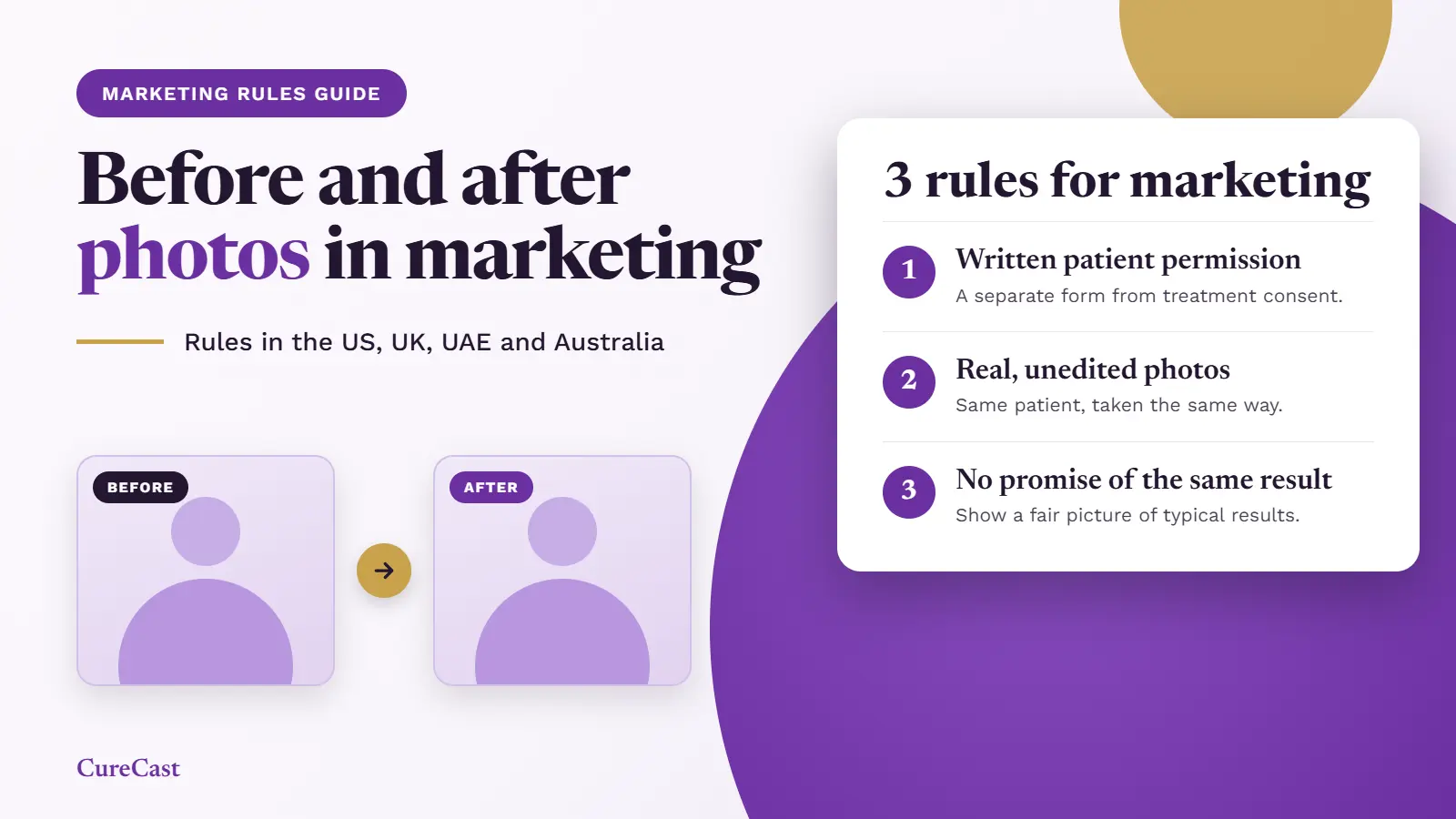
Using a patient photo for marketing is different. HIPAA generally requires the patient’s signed written permission, called an authorization, before you use their protected health information for marketing. There are a few exceptions (45 CFR 164.508(a)(3)).
Read our Patient Photo Consent Form guide for more information.
2. Sign in to the approved photo app
Open your clinic’s approved clinical photo app and sign in using your own account.
Do not use a coworker’s login. Individual accounts help the clinic track who accessed patient information.
3. Open the correct patient record
Find the patient’s record before taking the photo.
This helps ensure that the image is saved to the correct record instead of being left in the phone’s general photo gallery.
4. Check the background
Before taking the photo, check what appears behind the patient.
Keep other patients, staff members, computer screens, wristbands and paperwork out of the frame unless they are necessary for the clinical purpose.
These items may reveal information about another person or expose patient details.
5. Take the photo inside the approved app
Use the camera feature inside your clinic’s approved photo app.
Avoid the built-in camera app, lock-screen camera shortcut and screenshots for patient photography unless your clinic has specifically approved a workflow that meets its privacy and security requirements.
6. Check that the photo has been saved
Before the patient leaves, open the patient’s record and confirm that the photo is there.
If the app shows that the upload is still in progress, wait until the upload finishes and confirm that the image is available in the record.
Do not assume a photo has been saved just because you saw it on the screen.
7. Lock the phone after use
Lock the screen when you finish.
If the phone is shared, follow your clinic’s sign-out policy. Sign out of the photo app when required, especially before another staff member uses the device.
What if a photo ends up in the gallery by mistake?
Fix it the same day, in this order:
- Save the photo to the patient record, if your approved app can import it.
- Delete it from the gallery or Google Photos. If backup was on, deleting there also removes it from other devices with backup on.
- Empty the Google Photos trash. Otherwise, deleted items stay there for 30 days.
- Check the SD card, if the phone has one, and delete any copy there.
- Tell your privacy lead. They can judge whether it counts as a breach under 45 CFR 164.402.
Under 45 CFR § 164.402, a breach generally involves an impermissible use or disclosure of protected health information, unless an exception applies or the required assessment shows a low probability that the information was compromised.
Not every photo saved to the wrong location automatically requires patient notification. The clinic must assess the facts and follow the applicable rules.
Should Your Clinic Use Its Own Android Phone or a Staff Member’s Phone?
A clinic-owned phone is generally easier to manage because the clinic controls the device, account and security settings.
| Question | Clinic-owned phone | Staff member's own phone |
|---|---|---|
| Who controls the device? | The clinic. | The staff member owns it. |
| Who manages the Google Account? | The clinic can use an account it controls. | The staff member may use a personal account. |
| Can the clinic erase the phone remotely? | It may be possible through Find Hub or an approved mobile device management tool (a program your IT team uses to manage certain settings and security controls on enrolled phones). | Only if the device is properly enrolled and the clinic has the required permissions. |
| What happens when a staff member leaves? | The clinic collects the phone, removes access and prepares it for reuse. | The clinic removes the staff member's app access. The person keeps their phone. |
| When might it work best? | For shared devices managed by the clinic. | For clinics that allow personal devices and have strict rules for using the approved app. |
HIPAA expects rules for how devices are issued, reused and retired (45 CFR 164.310(d)(1)). It also expects you to end access when someone leaves (45 CFR 164.308(a)(3)(ii)(C)). Put both in your device policy.
If your clinic allows staff to use their own phones, write down which apps they may use, how patient photos must be stored and how access will be removed when they leave.
What if the phone is lost?
Lock it right away at android.com/lock (Remote Lock) or through Find Hub. Then end the phone’s session in your photo app and tell your privacy lead the same day. Our device management page covers the first steps.
Your documented risk assessment decides if you must notify patients. If notice is required, HIPAA sets an outer limit of 60 days from discovery (45 CFR 164.404).
Working outside the US?
HIPAA is US law. The same Android setup helps anywhere, but your own country’s rule applies:
- United Kingdom: UK GDPR treats health data as special category data (Article 9) and requires appropriate security (Article 32).
- UAE: Federal Law No. 2 of 2019 governs health data. Also check DHA or DoH Abu Dhabi rules for your emirate.
- Australia: Under the Privacy Act 1988, Australian Privacy Principle 11 requires reasonable steps to protect personal information.
Where CureCast fits
CureCast is a clinical photo app. Photos taken in the CureCast app are designed not to be written to the iPhone’s camera roll, and they are saved in the patient’s record. Each staff member has their own login. The audit trail (a record of who did what) logs views, downloads, shares, edits and deletions. Admins can end a lost phone’s session, which does not remove files that were already downloaded.
CureCast supports HIPAA-compliant workflows. No software makes a clinic compliant on its own. Your clinic still needs its own rules, training and phone settings. CureCast provides a signed BAA, starting from your 14-day trial. To learn more, read our page HIPAA and clinical photos: what practices need.
This guide provides general information about HIPAA and Android phone settings. It is not legal advice. Check the current rules and your clinic’s policies with the person responsible for privacy or your legal adviser.
References
Frequently asked questions
Is the Android camera app HIPAA-compliant?
Not by itself. HIPAA compliance depends on how your clinic takes, stores, accesses and shares patient photos. A standard camera app does not usually provide the individual logins and audit trail that a clinic needs.
Your clinic should use an approved workflow that meets the requirements that apply to it.
Can I store patient photos in Google Photos’ Locked Folder?
Do not assume that Locked Folder makes Google Photos suitable for patient information. It adds a layer of privacy to photos, but it does not replace individual staff accounts, an audit trail or the agreements and safeguards your clinic may need.
Use only a storage service approved by your clinic for patient information.
Does Android’s Private Space make a phone safe for patient photos?
No, not by itself. Private Space can hide and separate apps on a phone, but it does not automatically provide the individual user accounts, audit records and other safeguards needed for a clinical photo workflow.
Your clinic must assess the complete setup.
Can staff take patient photos on their own Android phones?
Yes, if your clinic permits it and the complete workflow meets the rules that apply. Staff should take photos only through the approved clinical photo app, follow the clinic’s device policy and protect the phone with a strong screen lock.
The clinic must also have a way to remove the person’s app access when they leave.
Is turning off Google Photos backup enough to protect patient photos?
No. Turning off backup helps stop new photos from being uploaded automatically, but it does not remove photos that were already backed up. Your clinic must check for existing copies and follow its approved process for removing them.
Does remotely erasing a lost Android phone delete every patient photo?
Not always. A remote factory reset may erase the phone’s internal data but leave files on a removable SD card. Remote erasing also depends on the device and its settings.
Do not rely on remote erasing as your only protection. End access through the clinical photo app and follow your clinic’s lost-device procedure.
Opened on 2026-10-19 unless marked. Legislation links are listed for you to click; none is marked verified.
US law (HHS, via eCFR)
- 45 CFR 164.312, technical safeguards: (a)(2)(i) unique user ID, (a)(2)(iv) encryption, (b) audit controls, (e)(1) transmission security. Text opened.
- 45 CFR 164.310 (d)(1): device and media controls.
- 45 CFR 164.308: (a)(3)(ii)(C) termination procedures, (a)(5) training.
- 45 CFR 164.502 (e) and 164.504 (e): business associate contracts.
- 45 CFR 164.506 and 164.508 (a)(3): treatment use and marketing authorization.
- 45 CFR 164.402 and 164.404: breach definition and 60-day limit.
Other markets
- UK GDPR Article 9 and Article 32.
- UAE Federal Law No. 2 of 2019.
- Australian Privacy Principle 11, OAIC.
Google and Android (product facts)
- Protect your personal data against theft: theft protection path, not on tablets, 6-digit PIN advice, lock screen notifications path, Remote Lock at android.com/lock.
- Find, secure, or erase a lost Android device: Find Hub on by default with a Google Account; reset may not delete SD cards.
- Android Open Source Project: Encryption: file-based encryption for new devices on Android 10 and later.
- Google Photos: Back up photos and videos: backup path.
- Google Photos: Delete photos and videos: 30-day trash, deletes sync across backed-up devices, memory card copies may remain.
- Hide sensitive apps with private space: main user only (search result summary, page not opened).
CureCast pages used for product facts