Quick summary
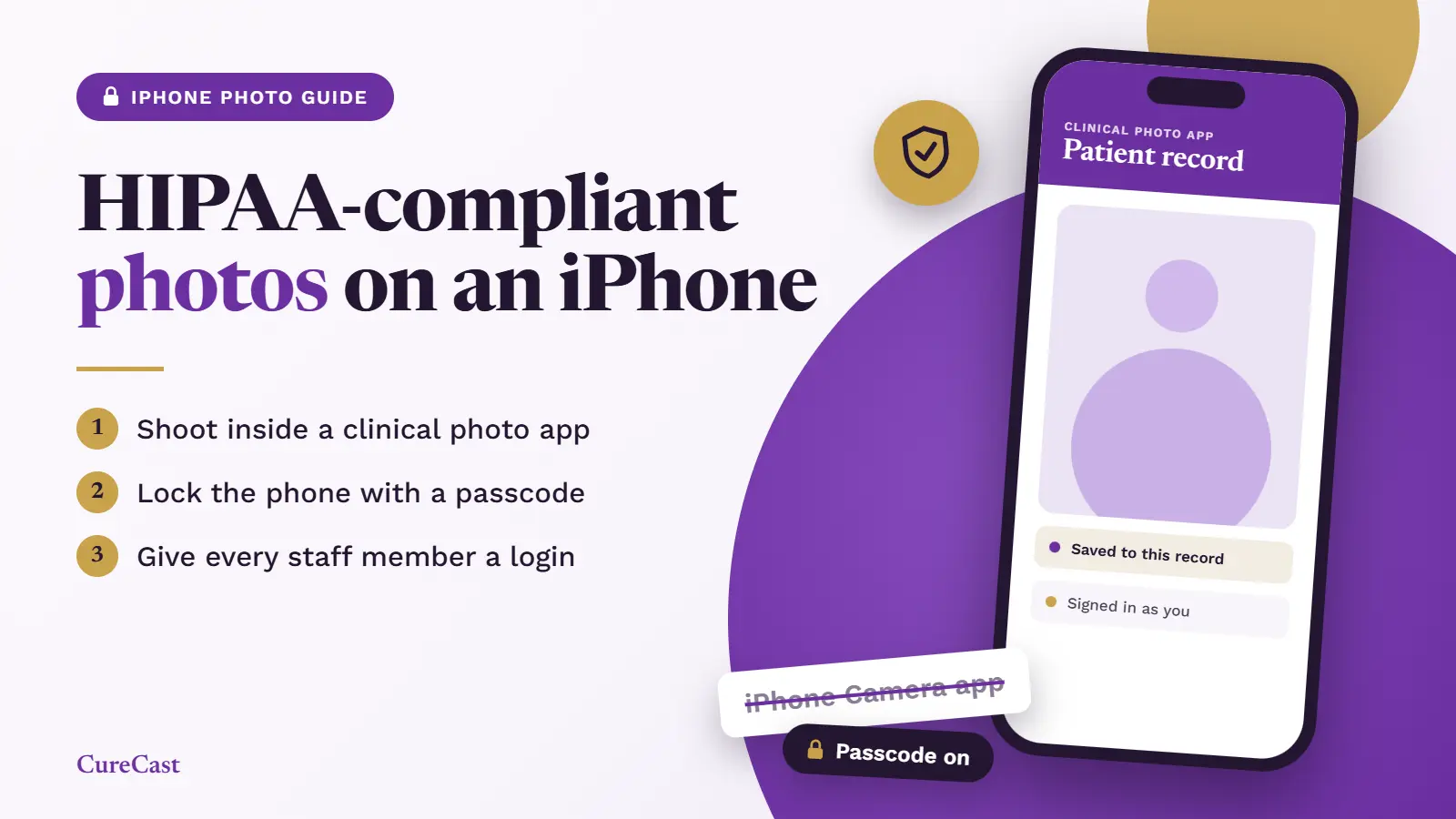
To take HIPAA-compliant photos on an iPhone, do these 3 things:
- Take the photo inside a clinical photo app, not the iPhone’s Camera app. The clinical photo app sends the photo to the app’s cloud server (online storage), not into the iPhone’s Photos app or your personal cloud.
- Lock the phone with a passcode. Also turn on Stolen Device Protection and Find My iPhone, which protect the phone if it is lost or stolen.
- Give each staff member their own login for the clinical photo app. This way, the app can show who opened, shared or deleted each photo.
Key principle: Patient photos should never be saved in the iPhone’s Photos app.
This is common, and it is easy to set up.
HIPAA doesn’t ban iPhones. It asks 3 things about every patient photo: where it’s stored, who can open it, and if you can prove what happened to it. This guide shows how to set up an iPhone so all 3 answers are clear.
Why not use the iPhone’s Camera app?
The Camera app saves every photo in the Photos app. From there, a patient photo can sync to a personal iCloud account send the photo wirelessly using AirDrop. Anyone who unlocks the phone can open it, because the Photos app has no separate login for each staff member. And there is no record of who opened, shared or deleted a photo.
Our other guide, “Is a phone gallery HIPAA compliant?”, explains these gaps in more detail. But the main point is simple: keep patient photos out of the Photos app from the very first shot.
What should your clinical photo app do?
The clinical photo app matters more than any phone setting. Phone settings can protect the phone itself. But they cannot give each person a login, or keep a record of who opened each photo. Only a clinical photo app can do that. Before your team uses a clinical photo app for patient photos, ask the company that makes it the questions below. You need a clear answer to each one.
| Ask the company that makes the clinical photo app | Why it matters under HIPAA |
|---|---|
| Will you sign a BAA (Business Associate Agreement) before we upload any photo? | A BAA is a written contract. In it, the company promises to protect your patients’ health information, including photos. HIPAA says you need one before a company stores that information for you (45 CFR 164.502(e), 164.504(e)). |
| Do photos taken in your app ever go into the iPhone’s Photos app? | If a photo never goes into the Photos app, it cannot sync to a staff member’s personal cloud, such as iCloud. |
| Does each person sign in with their own login? | HIPAA requires a unique user ID for each person (45 CFR 164.312(a)(2)(i)). |
| Does the app keep a record of who viewed, shared or deleted each photo? | HIPAA requires “audit controls”. This means a record of who did what, and when (45 CFR 164.312(b)). |
| Are photos protected (encrypted) while they upload? | Encryption turns a photo into a code that other people cannot read. HIPAA has a security standard for health information that is sent over the internet (45 CFR 164.312(e)(1)). |
| Can an admin at your clinic end the app session on a lost phone? | Phones get lost. HIPAA expects you to protect patient information on every device. So you need a way to stop a lost phone from opening patient photos quickly. |
Ask the company to give you the answers in writing. A “HIPAA” badge on a website does not show what the company has promised in its contract.
Which iPhone settings should you change?
The clinical photo app is the most important part. The second part is the phone itself. Change these settings once on each iPhone, before anyone uses it to take photos of patients. We checked the steps below against Apple Support pages in October 2026.
| Setting | Where to find it | What it does |
|---|---|---|
| Passcode (use at least 6 digits) | Settings > Face ID & Passcode > Turn Passcode On | A passcode locks the phone. It also turns on Apple’s Data Protection, which scrambles (encrypts) the files stored on the phone. |
| Erase Data | Settings > Face ID & Passcode > Erase Data (toggle on) | Erases the phone after 10 wrong passcode tries. Best for clinic-owned phones. |
| Allow Access When Locked | Settings > Face ID & Passcode | Turn off Notification Center and Today View, so nobody can read alerts on the locked screen. |
| Stolen Device Protection | Settings > Face ID & Passcode > Stolen Device Protection | When the phone is away from places it knows, such as home or work, some changes need Face ID or Touch ID, and some need a one-hour wait. This makes it harder for a thief to change important settings. Needs iPhone software version 17.3 or later (iOS 17.3). |
| Find My | Settings > [your name] > Find My > Find My iPhone (toggle on) | Helps you find a lost phone and mark it as lost from iCloud.com. Stolen Device Protection needs it turned on. |
| Software updates | Settings > General > Software Update | Install iPhone software updates when they arrive. Updates fix security problems. |
HIPAA expects you to use encryption on devices that hold patient information (45 CFR 164.312(a)(2)(iv)). Encryption scrambles the files on the phone, so other people cannot read them. But encryption only protects the phone. It does not make your clinic HIPAA compliant on its own.
What are the steps to take a patient photo?
- Make sure the patient agrees to have their photo taken. HIPAA lets you use a patient’s health information, including photos, for their treatment without a separate form (45 CFR 164.506). But your state law or your clinic’s rules may still ask for the patient’s consent. If you want to use a photo for marketing, you need the patient’s written permission first (45 CFR 164.508(a)(3)).
- Open the clinical photo app and sign in with your own login. This is how the app records who took each photo.
- Open the patient’s record in the app first. This way, the photo is saved to the right patient from the start, and it cannot be mixed up with another patient’s photos.
- Look at what is in the picture before you take it. Move patient ID wristbands, medical charts, computer screens and other people out of the picture. They can show private information about someone else.
- Take the photo inside the clinical photo app only. Do not use the iPhone’s Camera app, the camera shortcut on the lock screen, or a screenshot. All of these save the photo in the Photos app.
- Check that the photo was saved. Open the patient’s record and make sure the photo is there before the patient leaves. If it is missing, you can take it again while the patient is still with you.
- Lock the phone. On a shared phone, sign out of the app so the next person signs in as themselves.
What if a photo ends up in the Camera app by mistake?
It happens, usually in a rush. Fix it the same day, in this order:
- Save the photo to the patient’s record, if your clinical photo app lets you add a photo from the phone. Do this first, so the photo is not lost when you delete it.
- Delete the photo from the Photos app on the phone, so no copy stays there.
- Open the Recently Deleted album in the Photos app and delete the photo there too. If you do not, the phone keeps a copy for 30 days. You may need Face ID, Touch ID or your passcode to open this album.
- Check if iCloud Photos is turned on. This Apple feature copies the phone’s photos to online storage. If it is on, the photo may already be there. Apple’s guide “Delete and recover photos and videos on iCloud.com” shows how to delete it from iCloud.
- Tell the person at your clinic who looks after patient privacy (your privacy lead). They can decide if this counts as a breach. A breach is when patient information is seen or shared by someone who should not have it (45 CFR 164.402).
Should staff use a clinic iPhone or their own?
Both can work, if staff follow the steps above. A clinic iPhone is easier to control, because your clinic decides its settings. On a staff member’s own phone, your clinic can only ask them to follow your rules.
| Topic | Clinic-owned iPhone | Staff member’s own iPhone |
|---|---|---|
| Who controls the settings | Your clinic | The staff member, following your clinic’s written rules |
| Can you erase it from far away? | Yes, (a program your IT team uses to manage certain settings and security controls on enrolled phones) | Only if the staff member agrees to add it to your MDM tool |
| When someone leaves | Collect the phone and reset it | Remove their access to the clinical photo app. |
| Works best for | Phones that the whole team shares | Small teams with a strict rule: patient photos only in the clinical photo app |
HIPAA expects your clinic to have rules for how phones are given to staff, passed to someone else and taken out of use (45 CFR 164.310(d)(1)). It also expects you to remove a person’s access when they leave (45 CFR 164.308(a)(3)(ii)(C)). Write both into your clinic’s written device rules.
What if the iPhone is lost?
Do these 3 things right away. First, mark the phone as lost in the Find My app, or at iCloud.com/find. Second, end the phone’s session in your clinical photo app, so nobody can open patient photos through it. This may not remove photos that were already saved on the phone. Third, tell your privacy lead the same day.
Your clinic’s written risk check decides if you must tell patients. If you must, HIPAA says to do it as soon as you can, and no later than 60 days after finding out about the loss (45 CFR 164.404).
Working outside the US?
HIPAA is a US law. The same iPhone setup helps in any country. But your clinic must also follow the privacy laws of the country where it works:
- United Kingdom: The UK General Data Protection Regulation (UK GDPR) treats health information as “special category data”. You can only use it if a legal reason applies (Article 9). It also says you must keep personal data secure with suitable measures (Article 32).
- United Arab Emirates (UAE): Federal Law No. 2 of 2019 sets rules for keeping health information private and secure. Also check the rules of your local health authority: the Dubai Health Authority (DHA) in Dubai, the Department of Health Abu Dhabi (DoH) in Abu Dhabi, or the Ministry of Health and Prevention (MOHAP) in the other emirates.
- Australia: Under the Privacy Act 1988, Australian Privacy Principle 11 says you must take reasonable steps to protect personal information.
Choose one clinical photo app, and sign its BAA (Business Associate Agreement) before you upload the first photo.
Write a rule that the iPhone’s Camera app must not be used for patient photos.
On every phone, turn on a passcode, Stolen Device Protection and Find My iPhone.
Turn on Erase Data on clinic iPhones.
Write a rule that patient photos must never be sent by AirDrop.
Give each person their own login for the clinical photo app.
Once a month, look in the Photos app and the Recently Deleted album on clinic iPhones. Check that no patient photos are there.
When a person leaves, remove their access to the clinical photo app.
Train your team, and keep a record that you did (45 CFR 164.308(a)(5)).
Where CureCast fits
CureCast is a clinical photo app. Photos taken in the CureCast app are designed not to be written to the iPhone’s camera roll, and they are saved in the patient’s record. Each staff member has their own login. The audit trail (a record of who did what) logs views, downloads, shares, edits and deletions. Admins can end a lost phone’s session, which does not remove files that were already downloaded.
CureCast supports HIPAA-compliant workflows. No software makes a clinic compliant on its own. Your clinic still needs its own rules, training and phone settings. CureCast provides a signed BAA, starting from your 14-day trial. To learn more, read our page HIPAA and clinical photos: what practices need.
Frequently asked questions
Is the iPhone camera HIPAA compliant?
No. A camera or phone is not HIPAA compliant by itself. HIPAA looks at what happens to the photo: where it is saved, who can open it, and whether you can show what happened to it. The Camera app saves photos in the Photos app. That app has no separate login for each person and no record of who opened a photo. So use a clinical photo app instead.
Can I use the Hidden album for patient photos?
No. Hiding a photo only moves it to a separate album called Hidden. The photo is still in the Photos app, and it can still sync to iCloud. The album asks for Face ID, Touch ID or the passcode to open it, but anyone who knows the passcode can open it. The Photos app still has no separate login for each person and no record of who opened a photo.
Does Face ID make patient photos safe?
Not on its own. Face ID locks the phone, but it does not protect the photos inside it. Anyone who unlocks the phone can open the Photos app. HIPAA expects each person to have their own access, and a record of who opened each photo.
Can staff use their own iPhones for patient photos?
Yes, it can work, if your clinic’s written rules allow it and photos are taken only in the clinical photo app. The phone still needs a passcode, and the person’s access to the app must end when they leave.
References
US law (HHS, via eCFR)
- 45 CFR 164.312: technical safeguards (unique user ID, encryption, audit controls, transmission security)
- 45 CFR 164.310(d)(1): device and media controls
- 45 CFR 164.308: administrative safeguards (removing access when staff leave, training)
- 45 CFR 164.502(e) and 164.504(e): business associate contracts
- 45 CFR 164.506: uses for treatment
- 45 CFR 164.508(a)(3): marketing authorization
- 45 CFR 164.402 and 164.404: breach definition and notice
Other countries
- UK GDPR Article 9 and Article 32
- UAE Federal Law No. 2 of 2019, on the use of information and communication technology in health fields
- Australian Privacy Principle 11, Privacy Act 1988
Apple Support
- Use a passcode with your iPhone, iPad, or iPod touch
- Apple Platform Security: Passcodes and passwords: setting a passcode turns on Data Protection
- About Stolen Device Protection for iPhone
- Set up Find My on your iPhone, iPad, or Mac
- Hide photos on your iPhone, iPad, Mac, or Apple Vision Pro with the Hidden album
- How to recover deleted photos on your iPhone, iPad, Mac, or Apple Vision Pro
- Delete and recover photos and videos on iCloud.com