Quick summary
This guide explains how patient photos can end up in iCloud or Google Photos without staff realising it. It also explains how to turn off photo backups and what to do if patient photos are already stored in the cloud. Wondering whether a phone’s gallery can hold patient photos at all? Read our post “Is a Phone Gallery HIPAA Compliant for Patient Photos?“.
Is iCloud HIPAA compliant for patient photos?
No. Apple’s iCloud Terms and Conditions were last revised on 14 September 2026. Apple’s iCloud Terms and Conditions say that clinics and companies covered by HIPAA must not use iCloud to create, receive, store or send protected health information (PHI). The terms also say that iCloud must not be used in a way that would make Apple a business associate under HIPAA.
A business associate is a company that handles patient information for a clinic. HIPAA generally requires the clinic to have a business associate agreement (BAA) with a company that handles PHI for it, as explained in 45 CFR 164.502(e) and 164.504(e). A BAA is a written contract in which the company agrees to protect that information.
Does Advanced Data Protection make iCloud safe for patient photos?
No. Advanced Data Protection adds end-to-end encryption to iCloud Photos and backups. This improves security, but it does not change Apple’s terms for using iCloud with PHI. HHS guidancen also says that a cloud company may still count as a business associate when it stores encrypted patient information, even if the company cannot read that information.
Can You Use Google Photos to Store Patient Photos Under HIPAA?
Not with a personal Google account. A staff member’s personal Google account is not covered by the agreement their clinic has with Google.
Google offers a business associate agreement (BAA) for certain Google Workspace services. A BAA is a written agreement about how a company must protect patient information. Your clinic must accept this agreement before using the services covered by it for protected health information (PHI).
Even with a BAA, your clinic must make sure the service it uses is covered by the agreement and that patient photos are handled securely.
Keep these three points in mind:
- A personal Gmail account is not covered by your clinic’s BAA. Do not use a personal Google account to store patient photos.
- The BAA does not cover every Google service. Only the services listed in Google’s agreement are covered.
- Signing a BAA is not enough on its own. . Your clinic must also control who can open, download and share patient photos, and keep records of access where required. Google’s own page says compliance is a shared job.
In practice, most clinics find it simpler to keep patient photos out of every general photo app.
Where do patient photos leak into the cloud?
Photos can upload automatically because of phone settings. Staff may not realise that a photo has been copied to an online account or another device. Check each route below on every phone that has ever held a patient photo.
| Route | What happens | What to do |
|---|---|---|
| iCloud Photos | Every photo in the Photos app uploads to iCloud and appears on other Apple devices using the same account. | Turn off "Sync this iPhone" (steps below). |
| iCloud Backup | If iCloud Photos is off, Apple says iCloud Backup may include photos in the Camera Roll. | Check what iCloud Backup includes on that phone. |
| Shared Albums and Shared Library | People invited to a shared album or library may be able to view, save or copy photos. | Delete any album that holds patient photos. |
| Google Photos backup | Google Photos can upload photos from the camera and selected folders, such as screenshots and downloads. | Turn backup off, then check "Back up device folders". |
| Screenshots and saved images | Tell staff not to take screenshots of patient records unless your approved process allows it. | Tell staff not to take screenshots of patient records unless your approved process allows it. |
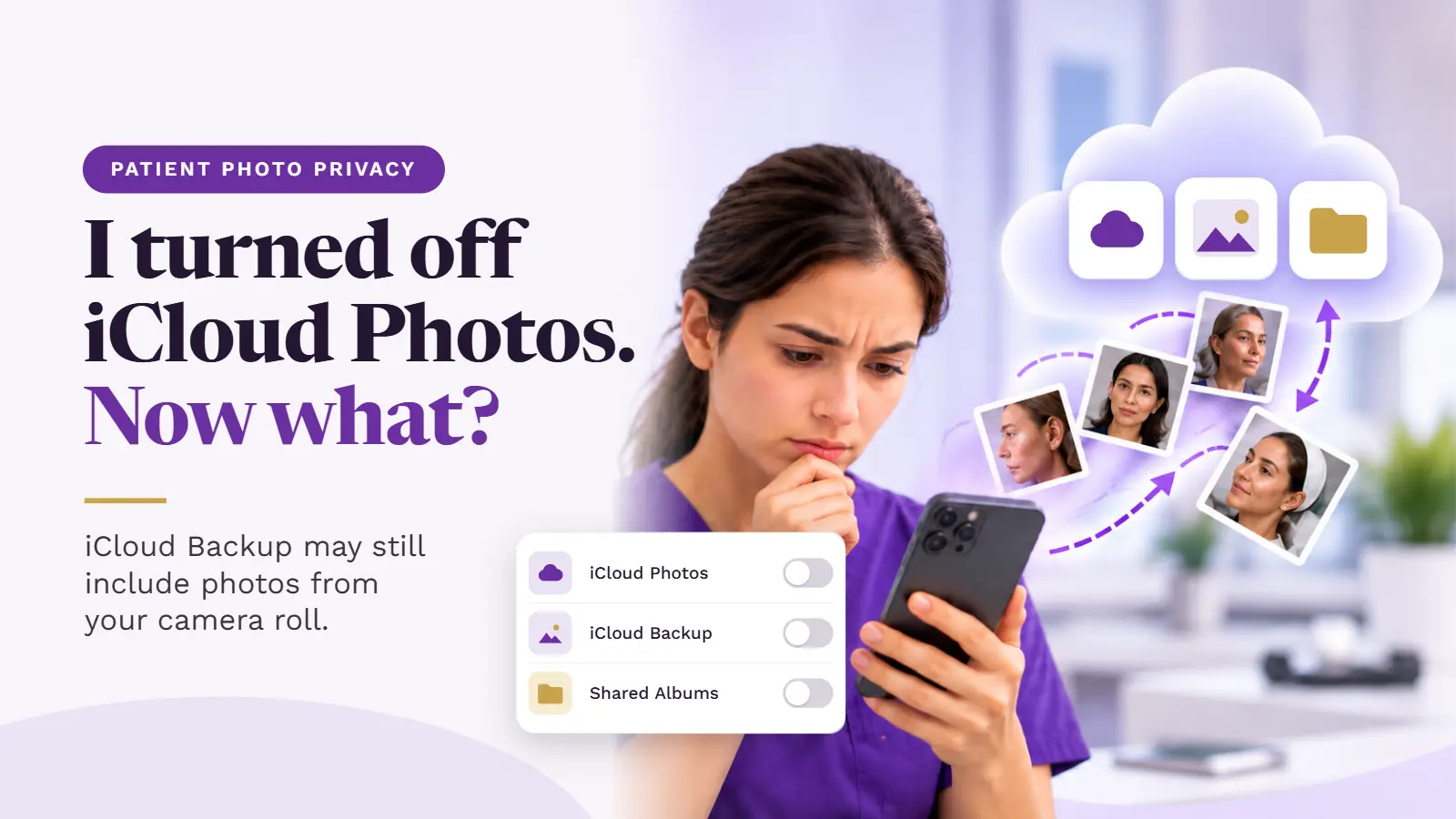
Important: Turning off iCloud Photos does not always stop patient photos from reaching iCloud. Apple says that photos may still be included in iCloud Backup. Check both settings.
How do you turn off iCloud Photos without losing photos?
Do not delete photos straight away. Some may need to be kept as part of a patient’s medical record. First, make sure they are safely stored in your clinic’s approved system.
- Move each patient photo into your clinic’s approved record system and link it to the correct patient.
- On the iPhone, open Settings and tap your name.
- Tap iCloud. Under Saved to iCloud, tap Photos.
- Turn off Sync this iPhone.
- If the phone still holds photos that you have not moved, choose Download Photos and Videos when that option appears. Choose Remove from iPhone only after the photos are safely stored elsewhere.
- Check iCloud Backup too, so patient photos are not copied there instead.
These steps come from Apple’s guide “How to turn off iCloud Photos” (published 14 September 2026). Menu names can change between iOS versions.
Turning off iCloud Photos on one phone does not delete the copies already in iCloud. To remove those, Apple says to use Turn Off and Delete Photos in iCloud storage settings. Apple deletes the photos 30 days later, and you can undo it before then.
Before deleting any copy, make sure your clinic has kept the records it needs.
How do you turn off Google Photos backup?
Follow these steps on Android:
- Open the Google Photos app and sign in.
- Tap your profile picture or initial at the top right.
- Tap Photos settings, then Backup.
- Turn Backup off.
- Under Back up device folders, check that no folder with patient photos is switched on.
To remove photos that have already uploaded:
- Keep backup turned off.
- Open photos.google.com and sign in to the correct account.
- Find and delete the patient photos that should not be stored there.
- Check the Recently Deleted or Trash area and remove the copies if appropriate under your clinic’s policy.
Google advises keeping backup turned off while removing these copies so they do not upload again.
Check iPhones too. Google Photos is also available on iPhones. Staff may have installed it without realising that it is backing up photos from their phone.
What should you do if patient photos are already in the cloud?
Treat these photos as patient records until your clinic’s compliance lead tells you what to do.
Follow these steps:
- Find the copies. Check which personal or work accounts received the photos. Ask staff calmly and without blaming them, so they feel safe telling you what happened.
- Save the records your clinic needs. Move the photos into your approved system and link them to the correct patient.
- Remove the cloud copies. Delete them from the account, shared albums and Recently Deleted or Trash areas, following your clinic’s instructions.
- Write down what happened. Record where you found the photos, what you moved or deleted, and when you did it. Your compliance lead may need this information to assess the risk.
- Tell your compliance lead promptly. If you think a patient photo may have been shared or stored in the wrong place, ask them what to do that day.
Do not decide on your own whether the incident must be reported. Your compliance lead needs to review what happened and decide which rules apply.
Can you block iCloud on clinic-owned phones?
Often, yes.
A mobile device management (MDM) tool lets your clinic’s IT team control certain settings on clinic-owned phones and tablets.
Ask the person or company that manages your clinic’s computers and phones whether they can block iCloud Photos and iCloud Backup on clinic phones, and whether any extra setup is needed.
Staff-owned phones are harder to control because your clinic does not manage all their settings.
A safer clinic rule is to take patient photos only in an approved clinical photo app that saves them directly to the clinic’s system, instead of to the phone’s normal photo gallery.
HIPAA applies to most US clinics that bill insurance electronically. Not sure if yours is one? Your compliance lead can confirm.
Do these rules apply outside the US?
Yes, but the laws are different in each country. HIPAA is a US law, so clinics in other countries must check their own privacy rules.
United Kingdom
Under the UK General Data Protection Regulation (UK GDPR), information about a person’s health is special category data, which means it needs extra protection.
Article 28 says that when a clinic uses another company to handle personal data, there must be a written contract covering that work. A staff member’s personal iCloud account does not give the clinic a suitable agreement for this purpose.
Read our UK data protection guide.
United Arab Emirates
UAE Federal Law No. 2 of 2019 covers health information handled in the UAE.
Article 13 sets rules on storing and processing health information outside the country, subject to any permitted exceptions. The draft also refers to a fine of AED 500,000 to AED 700,000 for breaking Article 13.
Legal review needed: Confirm the current rule, any exceptions and the fine amount before publishing this statement.
A personal cloud account also makes it harder for your clinic to control where photos are stored and who can access them.
Read our UAE data protection guide.
Australia
Under the Australian Privacy Act 1988, Australian Privacy Principle 11 requires organisations to take reasonable steps to protect personal information from misuse, loss and unauthorised access.
Health information receives extra protection. Clinics should check how these rules apply to their own photo storage and backup systems.
Read our Australian Privacy Act guide.
What should your clinic do?
Use this checklist to review your clinic’s phones and photo storage.
- List every phone, tablet and computer that has held patient photos.
- Check iCloud Photos, iCloud Backup, Shared Albums and Google Photos backup on each device.
- Move patient photos into your approved system before deleting copies.
- Turn off photo syncing and backup wherever patient photos should not be stored.
- Remove unwanted cloud copies and check shared albums and Recently Deleted or Trash areas.
- Ask your IT provider whether MDM can block these settings on clinic-owned phones.
- Add a clear rule to your photo policy: staff must take patient photos only in the approved clinical app.
- Train staff on the rule and keep a record of the training. HIPAA includes staff security training requirements (45 CFR 164.308(a)(5)).
- Check the settings again after major phone updates and when staff leave the clinic.
HIPAA applies to most US clinics that bill insurance electronically. Not sure if yours is one? Your compliance lead can confirm.
7. What should your clinic do to protect patient photos?
Use this checklist to review your clinic’s phones and photo storage.
- List every phone, tablet and computer that has held patient photos.
- Check iCloud Photos, iCloud Backup, Shared Albums and Google Photos backup on each device.
- Move patient photos into your approved system before deleting copies.
- Turn off photo syncing and backup wherever patient photos should not be stored.
- Remove unwanted cloud copies and check shared albums and Recently Deleted or Trash areas.
- Ask your IT provider whether MDM can block these settings on clinic-owned phones.
- Add a clear rule to your photo policy: staff must take patient photos only in the approved clinical app.
- Train staff on the rule and keep a record of the training. HIPAA includes staff security training requirements (45 CFR 164.308(a)(5)).
- Check the settings again after major phone updates and when staff leave the clinic.
How does CureCast help?
CureCast is a clinical photo app for plastic surgery, dermatology and medical spa teams.
Staff take photos in the CureCast app, and the photos are saved to the patient’s record instead of the phone’s normal photo gallery. This helps prevent new clinical photos from being copied through the phone’s usual photo storage and backup settings.
Clinic administrators can choose who can view, download or share photos. CureCast’s audit trail records photo views, downloads and shares.
CureCast supports HIPAA-compliant workflows and provides a business associate agreement (BAA). Your clinic is still responsible for following the rules that apply to its work, including staff training, access controls and risk checks.
Learn more on our clinical photo management page.
HIPAA applies to most US clinics that bill insurance electronically. Not sure if yours is one? Your compliance lead can confirm.
Frequently asked questions
Can staff use a separate Apple ID for work photos?
No. A separate Apple ID still uses iCloud. Apple’s terms say that covered clinics must not use iCloud for patient health information. Using a different account does not change that rule.
Does turning off iCloud Photos delete photos from my iPhone?
Not necessarily. Apple may offer two choices. Download Photos and Videos keeps copies on the phone. Remove from iPhone removes the photos from that phone, but does not by itself delete copies already stored in iCloud.
Make sure your clinic has safely stored the photos it needs before removing anything.
Is a clinic’s Google Workspace account safe for patient photos?
It may be suitable if your clinic has accepted Google’s BAA and uses only the services covered by that agreement. Your clinic must also control access to the photos and follow its privacy and security rules.
What should we do if we find patient photos in a personal account?
Do not panic, and do not delete the photos before checking what your clinic needs to keep.
Move the photos into your approved system, follow your clinic’s process for removing the cloud copies, and tell your compliance lead promptly. They can decide whether further action or reporting is needed.
This guide provides general information, not legal advice. Rules can differ by country and by US state. Ask your clinic’s compliance lead or legal adviser which rules apply to your clinic.
HIPAA applies to most US clinics that bill insurance electronically. Not sure if yours is one? Your compliance lead can confirm.
This post is general information about HIPAA and similar laws in other countries. It is not legal advice. Check your own situation with your compliance lead or counsel.
References
US
- Apple, iCloud Terms and Conditions, Section I.C, “Limitations on Use” (last revised 14 September 2026).
- Apple Support, How to turn off iCloud Photos (published 14 September 2026).
- Apple Support, What does iCloud back up? (published 1 May 2025).
- Google Workspace Help, HIPAA Compliance with Google Workspace and Cloud Identity (last updated 13 October 2026).
- Google Cloud, HIPAA compliance on Google Cloud and Google Workspace, Google Workspace supported services list (list dated 31 August 2025; page updated 13 October 2026).
- Google Photos Help, Back up photos & videos (Android).
- HHS OCR, Guidance on HIPAA & Cloud Computing (page modified 20 March 2026).
- 45 CFR 164.502(e) and 164.504(e), business associate contracts (eCFR).
- 45 CFR 164.308(a)(5), security awareness and training (eCFR).
UK
- UK GDPR Article 9, special categories of personal data.
- UK GDPR Article 28, processor.
UAE
- UAE Federal Law No. 2 of 2019 on the Use of ICT in Health Fields, Articles 13 and 24 (UAE Ministry of Justice legislation portal).
Australia